
 Log in
 Start Free Trial

HVAC and home services · Workflow guide
How HVAC teams can stay on top of service inquiries and estimates
HVAC companies receive requests for inspections, replacements and estimates by phone, text and form while technicians work in the field. Give each request an owner and a callback task, track inspection and estimate stages, and remind the owner after an estimate is sent.

- Industry
- HVAC and home services
- Primary challenge
- Requests and estimates that go quiet
- Arches CRM focus
- Service inquiries, estimates, customer communication and follow-ups
Business goals
- Give every service request an owner
- Keep calls, texts and email on one record
- Follow up every sent estimate
Challenge and proposed solution
When an estimate disappears
HVAC companies hear from homeowners, property managers and customers asking for estimates. Office staff take calls while technicians work in the field.
Challenge
Service requests arrive through different channels
Arches CRM setup
Capture website requests as records and assign them to the office team with a callback task.
Office staff return the call.
Challenge
Inspection and estimate follow-ups are forgotten
Arches CRM setup
Link a task to each Opportunity and review open estimates by stage.
The estimate is prepared in the company's own tool.
Challenge
Technicians and sales staff have different priorities
Arches CRM setup
Keep the sales pipeline in Arches CRM and leave dispatch in the field-service tool.
Dispatch and job scheduling stay in the field software.
CRM configuration and daily workflow
What the team configures
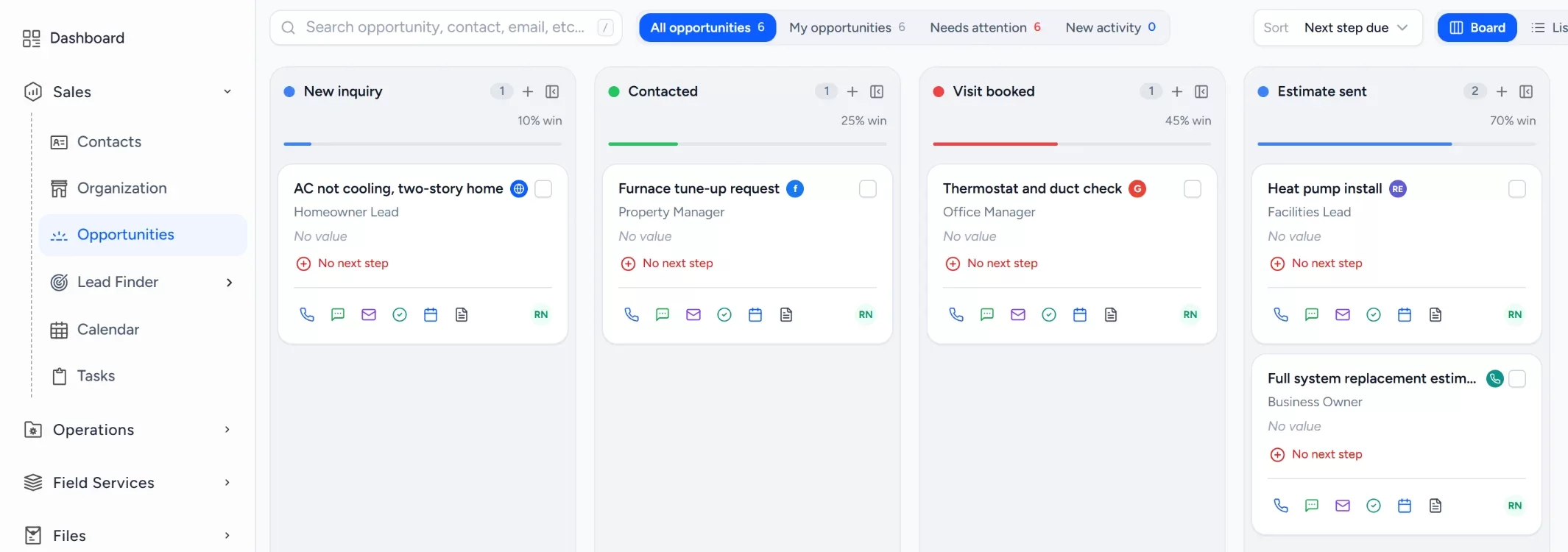
- 1New inquiry
- 2Contacted
- 3Inspection required
- 4Estimate sent
- 5Customer decision
- 6Won or lost
Capture website inquiries
A request form on the company site creates a record with the customer's details and the page it came from.
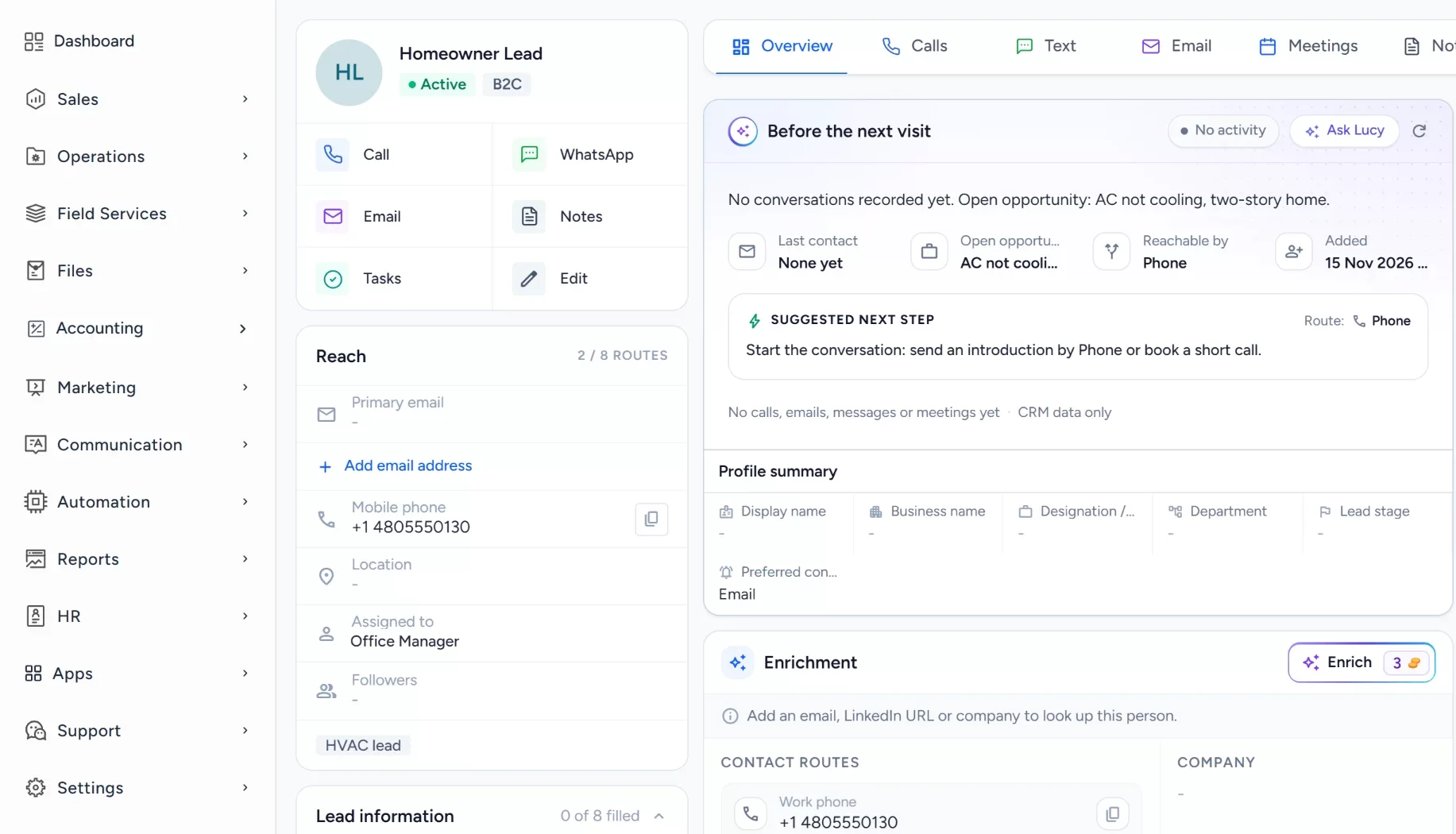
Keep calls and texts on the customer
The company's own Twilio number logs calls and text messages on the contact, so the history is in one place.
- Twilio
Assign owners and callback tasks
A workflow assigns each new inquiry to the office manager and creates a callback task.
Track inspection and estimate stages
Stages cover contact, inspection and estimate through the customer decision, with lost reasons for work not booked.
Set the estimate follow-up
When an opportunity reaches Estimate sent, a workflow creates a follow-up task for its owner.
Workflow recipe
Build it in Workflows
When an estimate is marked as sent, this workflow creates a follow-up task for the owner so a quote never waits too long for a reply.
When
An Opportunity stage changes to Estimate sent
Only if
- The Opportunity is in your service and replacement pipeline
Then
- Create a task to call the customer about the estimate
- Assign an owner
- Send an internal notification to the owner
Lucy participation
Where Lucy helps
- TriggerAn estimate has been in Estimate sent with no follow-up task logged.
- ContextLucy reads the customer record, notes and logged calls and texts that the office user may open.
- ProposalLucy suggests a follow-up task and drafts a short message checking whether the customer has questions.
- ReviewA person reads the draft, edits it and approves it. Anything Lucy drafts for a customer waits for a person to approve it before it leaves.
- LoggedThe approved message and the follow-up task are logged on the record's activity, so the next person sees what was sent.
Before and after
How the process changes
Without the suggested setup
- Requests arrive on different phones and forms
- Calls and texts are not tied to the customer
- Sent estimates depend on someone remembering
- Nobody sees which estimates are still open
With the suggested setup
- Requests become records with an owner
- Calls and texts are logged on the customer
- Estimate sent creates a follow-up task
- Open estimates are reviewed by stage
A comparison of typical processes, not measured results.
How to configure
Set it up in five steps
Add your first records
In Sales > Contacts, add a few homeowners and open an Opportunity for an inspection in Sales > Opportunities.
Configure the lead source
In Sales > Lead Finder > Form Builder, build the request form, then add the Website Form Capture card under Settings > Integrations to put it on your site.
Set the Opportunity pipeline
In Sales > Opportunities, open the pipeline settings and add the stages: New inquiry, Contacted, Inspection required, Estimate sent, Customer decision, Won or lost. Add lost reasons for work that is not won.
Set tasks, workflows and the approval policy
In Automation > Workflows, create a workflow on the opportunity stage changed trigger that creates a follow-up task when an Opportunity reaches Estimate sent, and another on form submitted that assigns the owner. A plain Send email step in a workflow sends on its own, so use it only for messages you are happy to go out automatically.
Check it with a test run
Open the Dashboard to see the new records, check Communication > Notifications for the task alert, and submit a test request through the form and confirm the callback task is created.
Intended benefits
What this setup is designed to improve
Scope. Arches CRM also has a dispatch board if you want to move scheduling in later. This guide keeps technician dispatch and job scheduling in your current field-service tool.
- Designed to show the status of each inquiry and estimate
- Designed to give every follow-up a named owner
- Designed to keep calls, texts and email on one customer record
- Designed to make sent estimates harder to forget in a busy week
Screens
What the team sees in Arches
Questions about this workflow
Is Arches CRM a field-service dispatch tool?
This guide keeps dispatch in your current field software. Dispatch features exist on higher plans but are not part of this setup.
How can website inquiries enter the CRM?
Through a website form built in Form Builder and placed on your site, which creates a record with its source.
Can Lucy send estimates?
No. Lucy can draft a message, and customer sends need approval. Estimates are prepared in your own tool or the accounting module.
Related workflows
Give consulting proposals one shared pipeline and a clear next step
Share discovery notes, assign proposal follow-ups and see every engagement across the firm in one pipeline.Read the guideExplore Arches CRM for HVAC Businesses
The full hvac page: lead capture, pipeline, automation and FAQs.Open the pageBusiness story: A busy service day should not mean a missed customer inquiryRead the story
Explore Arches CRM for HVAC Businesses.
Or book a demo and we will walk through this workflow with your own team.Explore Arches CRM for HVAC Businesses Book a demo