
 Log in
 Start Free Trial

Practical CRM workflow guides
See how everyday work gets done in Arches CRM.
A new lead comes in. Someone needs to respond. A meeting happens, a quote is prepared, or a customer asks for more time. What happens next? These guides show how to organize each step in Arches CRM, from the first conversation to the next follow-up, so you can use them as a starting point for your own workflow.
Featured guide · Small businesses
How small businesses can move from spreadsheets to a clear sales process
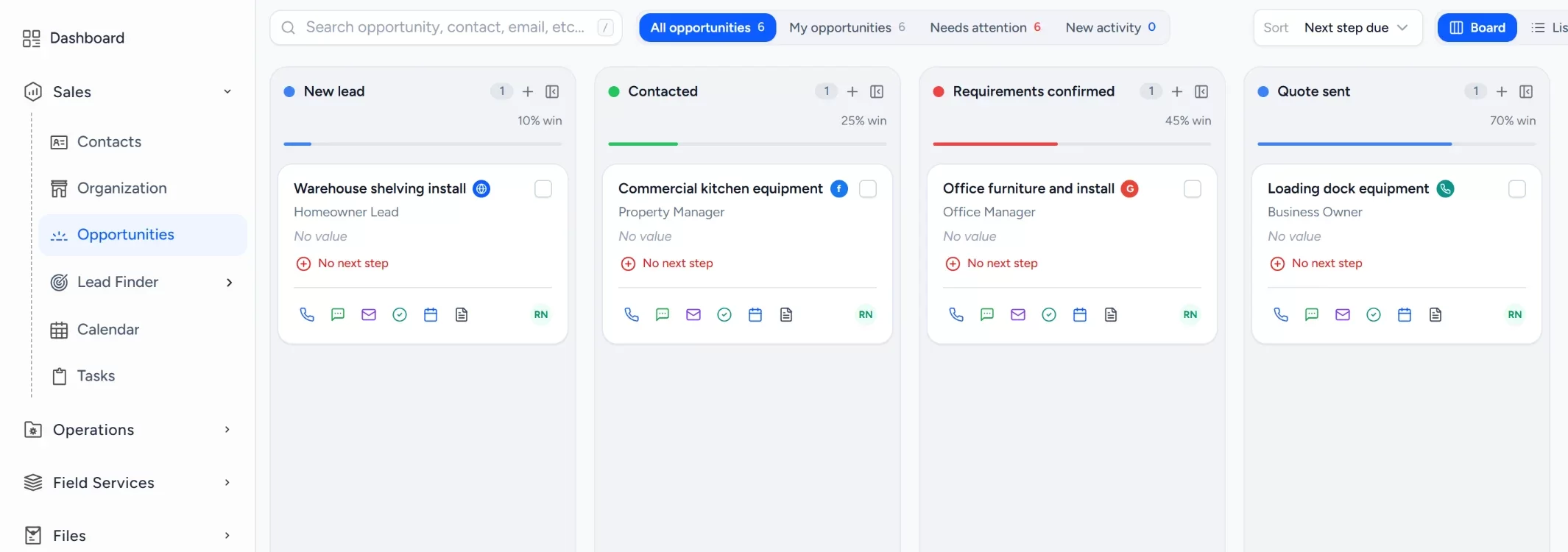
Small businesses often keep customers in a spreadsheet and quotes in personal inboxes. Import the sheet, build one pipeline from new lead to won, give each quote an owner and a next step, and let the owner review open work on a dashboard.
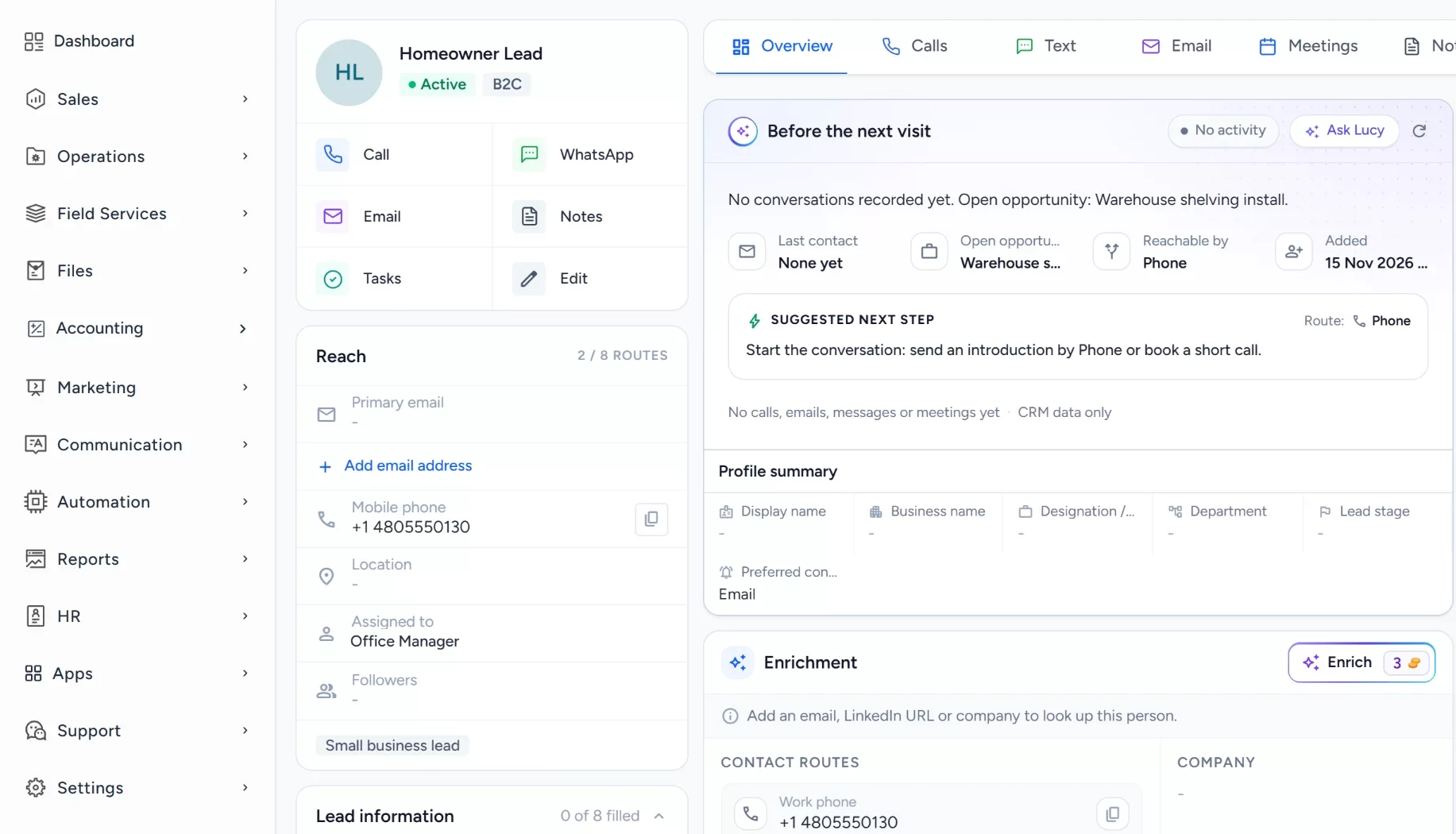
Draft follow-upLucy drafts a reply from the record
Approve and sendA person reviews before anything is sent
Find a guide for your team
Keep every buyer inquiry moving from first message to showing
Keep buyer inquiries moving from first contact to the next showing, with an owner on each one.Read the guideKeep long software evaluations organized from demo request to close
Keep long sales conversations organized across every decision maker, with stalled Opportunities flagged for review.Read the guideFollow up on showroom quotes and special orders before they go cold
Remember interested shoppers after the first conversation, so special orders and quotes get a follow-up.Read the guideMake sure every service request and estimate has a named owner
Give every service inquiry and replacement estimate a next step, even while technicians are out on jobs.Read the guideGive consulting proposals one shared pipeline and a clear next step
Share discovery notes, assign proposal follow-ups and see every engagement across the firm in one pipeline.Read the guideKeep coverage inquiries and quote requests from falling between brokers
Assign each coverage inquiry by product line, track quotes to a decision and keep renewal tasks on the record.Read the guideKeep borrower inquiries and referral partner relationships in one place
Track borrower introductions and referral partners, assign the responsible officer and keep every next step visible.Read the guideBring ad, website and referral leads into one new business pipeline
Make lead ownership clear, note the services each prospect needs and follow every proposal through to a decision.Read the guideFollow up every roofing estimate until the homeowner decides
Give every sent roofing estimate an owner, a dated follow-up task and a workflow that flags quiet ones.Read the guideWhat you will learn
From scattered follow-up to one shared process
Each guide explains how an inquiry enters the CRM, what the team should record, who owns the next action, what each stage change means and when a follow-up is due. You will also see where Lucy can help you review records or prepare the next step.
Without the suggested setup
- Inquiries arrive in separate inboxes, phones and spreadsheets
- Nobody is sure who owns the next reply
- Quotes and proposals go quiet without a reminder
- Managers piece together the pipeline by asking around
With the suggested setup
- Each inquiry becomes one record with an owner
- A workflow assigns the lead and creates the first task
- Stages show where every opportunity stands
- The dashboard shows open work by stage and owner
A comparison of typical processes, not measured results.
Lucy AI in the workflow
Lucy prepares, a person decides.
Try asking Lucy which leads have not been contacted, what changed in your pipeline, or which Opportunities have no upcoming task. Lucy works with the records you are allowed to see, and anything she drafts for a customer waits for your approval.
- TriggerA new inquiry or a quiet opportunity on the record.
- ContextLucy reads messages, opportunities and tasks the user is allowed to see.
- ProposalA suggested next step, a meeting brief or a draft reply.
- ReviewA person edits and approves. Nothing reaches a customer before that.
- LoggedThe approved message and the task stay on the record.
Make the workflow your own
Start from a guide, then fit it to your team
Start with the process shown in a guide, then adjust stages, fields and tasks to fit the way your team works.
Create your records
In Sales > Contacts, add or import your customers, and open an opportunity for each active sale in Sales > Opportunities.
Connect a lead source
Build a request form in Sales > Lead Finder > Form Builder and place it on your site with the Website Form Capture card in Settings > Integrations.
Set the pipeline
In Sales > Opportunities, open the pipeline settings and name the stages your team actually uses, plus lost reasons.
Add tasks and workflows
In Automation > Workflows, assign an owner and create a follow-up task when a form arrives or a stage changes. Customer messages drafted by Lucy wait for approval.
Check the dashboard
Open the Dashboard to see opportunities by stage and owner, then run one sample inquiry end to end.
Want to try one of these workflows with your own process?
Start a free trial or book a demo to explore the right setup for your team.Book a personalized demo Start free trial