 Log in
 Start Free Trial

Consulting and professional services · Workflow guide
How consulting firms can carry client conversations from first consultation to follow-up
Consulting firms often keep prospect conversations in individual inboxes, and proposals are followed up inconsistently. Centralize relationship context, move each engagement from discovery to a proposal with a next task, and give partners one pipeline and dashboard, while project delivery stays elsewhere.
- Industry
- Consulting and professional services
- Primary challenge
- Prospect context in personal inboxes
- Arches CRM focus
- Business inquiries, discovery calls, proposals and client relationships
Business goals
- Consolidate prospect context in shared records
- Follow up every proposal consistently
- Give partners one pipeline view
Challenge and proposed solution
When context lives in personal notes
Consultancies receive new inquiries through referrals, networking and the website. Each engagement moves through discovery, scope clarification, proposals and negotiation.
Challenge
Consultants own scattered prospect email threads
Arches CRM setup
Connect email so conversations are logged on the contact where the user has authorized it.
Each consultant connects their own mailbox.
Challenge
Proposals have no consistent follow-up
Arches CRM setup
Track proposal Opportunities with related next tasks and send proposals for e-signature.
The partner decides the terms of each proposal.
Challenge
Partners lack a shared pipeline view
Arches CRM setup
Use common stages and a management dashboard across consultants.
Partners agree the stage definitions.
CRM configuration and daily workflow
What the team configures
- 1New inquiry
- 2Discovery call
- 3Scope defined
- 4Proposal submitted
- 5Negotiation
- 6Won or lost
Centralize contacts and opportunities
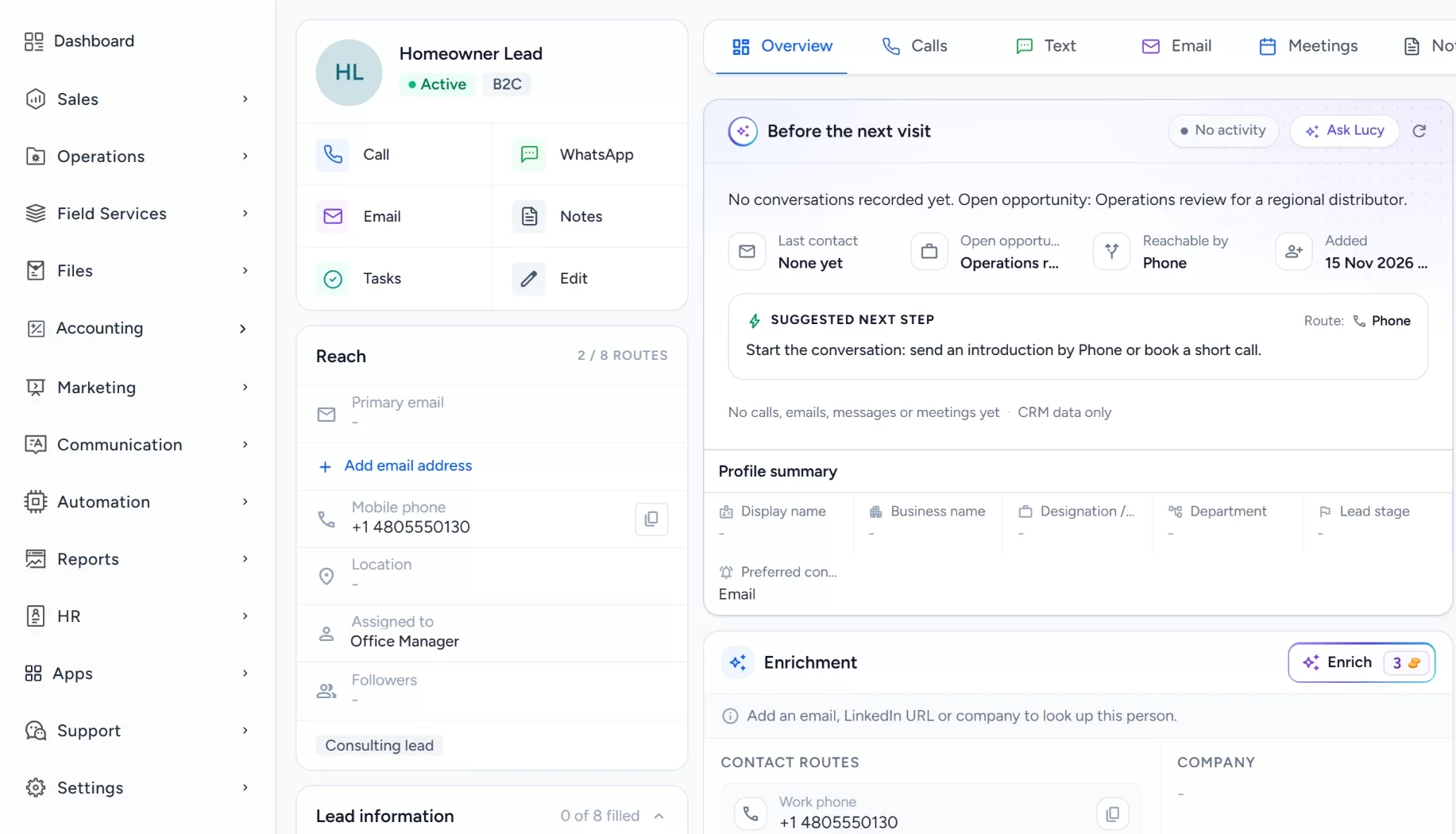
Each prospective client and engagement has one record, shared across the firm.
Keep discovery notes with the client
Notes from discovery calls are saved on the record, with files attached where useful.
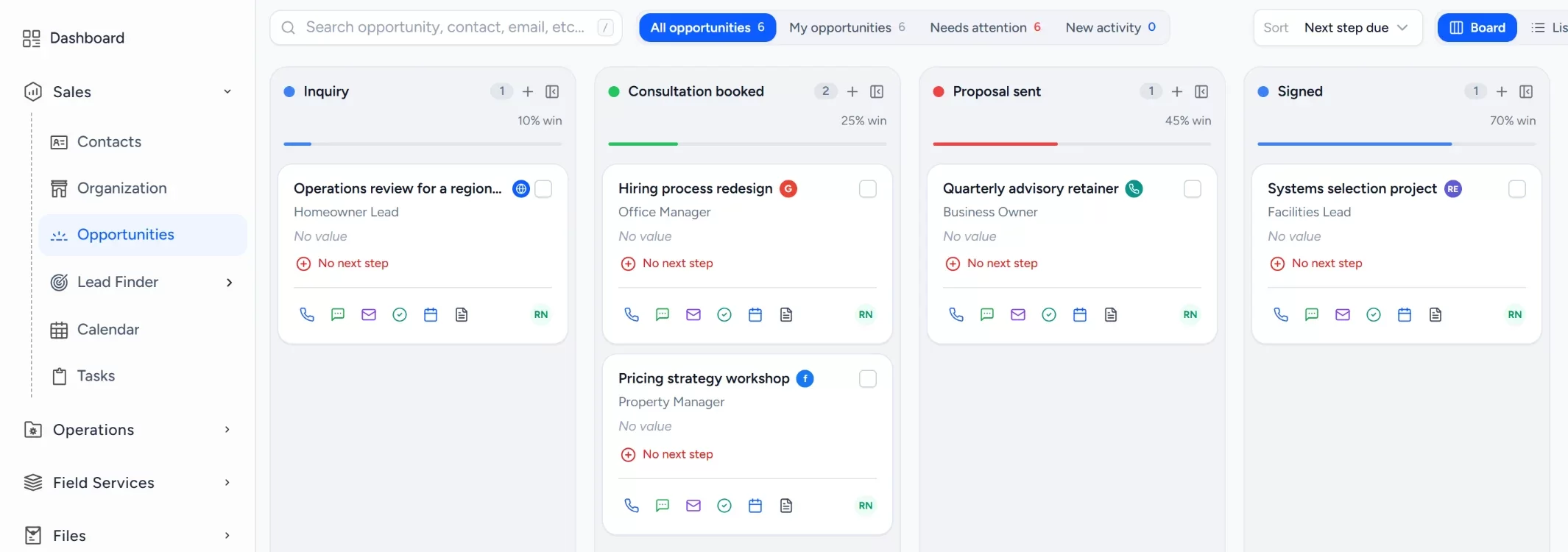
Review the pipeline across consultants
Stages run from discovery call through scope and proposal to negotiation, visible to the whole team.
Prepare and track proposals
Proposals are created in the CRM and can be sent for signature through DocuSign.
- DocuSign
Assign proposal follow-ups
A task after the proposal is sent gives each follow-up a named consultant.
Workflow recipe
Build it in Workflows
When a proposal goes out, this workflow gives the follow-up a named consultant and a task, so no proposal waits unanswered.
When
An Opportunity moves to the stage Proposal submitted
Only if
- The Opportunity is in the consulting pipeline
- The Opportunity has an owner
Then
- Create a task: Follow up on the proposal
- Assign the task to the Opportunity owner
- Send an internal notification to the owner
Lucy participation
Where Lucy helps
- TriggerA discovery call is scheduled for tomorrow with a prospect.
- ContextLucy reads the contact, earlier logged email and notes that the consultant may open.
- ProposalLucy prepares a meeting brief and drafts a follow-up note for after the call.
- ReviewA person reads the draft, edits it and approves it. Customer sends from Lucy need approval before anything leaves.
- LoggedThe approved message and the follow-up task are logged on the record's activity, so the next person sees what was sent.
Before and after
How the process changes
Without the suggested setup
- Prospect threads live in personal inboxes
- Proposals wait for someone to remember
- Partners ask each consultant for status
- Discovery notes sit in separate files
With the suggested setup
- Conversations are logged on the contact
- Each proposal has a next task
- Partners see one pipeline with common stages
- Discovery notes stay on the record
A comparison of typical processes, not measured results.
How to configure
Set it up in five steps
Create your first records
In Sales > Organization, add the client company, then add a contact in Sales > Contacts and an engagement in Sales > Opportunities.
Configure the lead source
Connect a mailbox under Settings > Integrations so conversations log on the contact, and build a request form in Sales > Lead Finder > Form Builder.
Set the Opportunity pipeline
In Sales > Opportunities, open the pipeline settings and add the stages: New inquiry, Discovery call, Scope defined, Proposal submitted, Negotiation, Won or lost. Add lost reasons for work that is not won.
Set tasks, workflows and the approval policy
In Automation > Workflows, create a workflow on the opportunity stage changed trigger that creates a proposal follow-up task for the owner. Lucy drafts wait for a person to approve them, while a workflow email step sends as you configure it.
Check it with a real interaction
Open the Dashboard to see the new records, check Communication > Notifications for the task alert, and log a discovery call and confirm it appears on the client record.
Intended benefits
What this setup is designed to improve
Scope. Arches CRM covers prospects and proposals, and it does not replace project-delivery or billing software once an engagement is won.
- Designed to coordinate business development more reliably
- Designed to preserve client context across consultants
- Designed to give every proposal a visible next step
- Designed to stay focused on selling, not delivery or accounting
Screens
What the team sees in Arches
Questions about this workflow
Can Arches CRM deliver consulting projects?
No. It covers prospects and proposals. Project delivery and billing stay in your other tools.
Can meeting notes be connected?
Notes and logged email can be kept on the record. Calendar and Calendly connect through Settings > Integrations.
What can Lucy prepare?
Meeting briefs, summaries and message drafts from records the user can open. Customer sends need approval.
Related workflows
Keep coverage inquiries and quote requests from falling between brokers
Assign each coverage inquiry by product line, track quotes to a decision and keep renewal tasks on the record.Read the guideExplore Arches CRM for Consulting Firms
The full consulting page: lead capture, pipeline, automation and FAQs.Open the pageBusiness story: Turning a good consulting conversation into a clear next stepRead the story
Explore Arches CRM for Consulting Firms.
Or book a demo and we will walk through this workflow with your own team.Explore Arches CRM for Consulting Firms Book a demo