
 Log in
 Start Free Trial

Retail and local shops · Workflow guide
How retail stores can organize inquiries and remember repeat customers
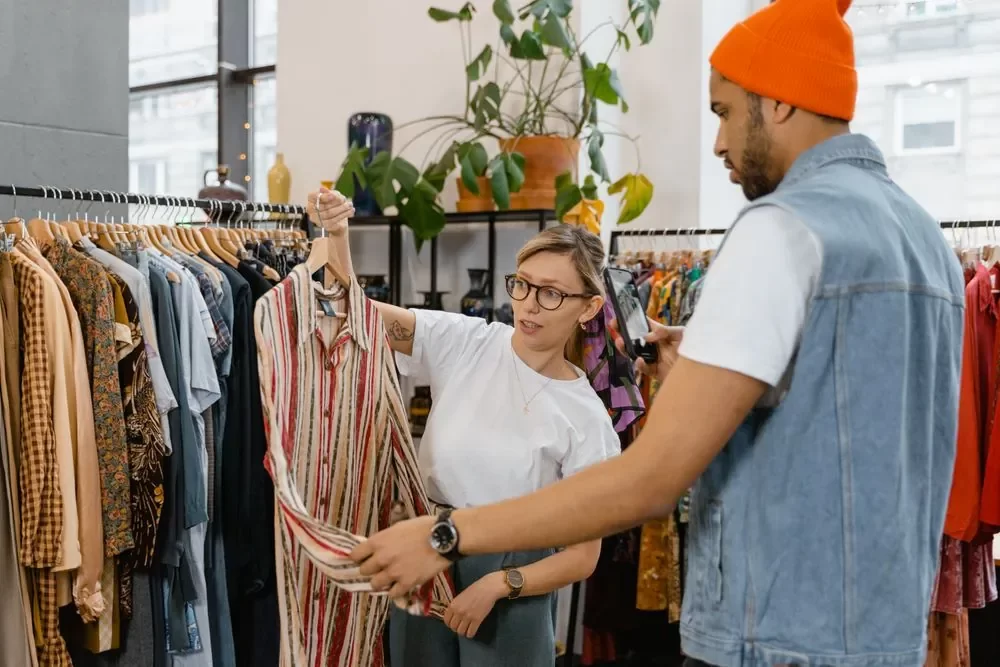
Retail stores discuss larger purchases and special orders with customers in person, by phone and online. Keep each customer's history in one record, open an Opportunity for higher-value purchases, assign a salesperson and schedule a follow-up, while point-of-sale and inventory stay separate.
- Industry
- Retail and local shops
- Primary challenge
- Showroom quotes without a follow-up
- Arches CRM focus
- Customer inquiries, quotations, special orders and relationship history
Business goals
- Keep each customer's conversations together
- Track larger purchases and special orders
- Schedule a follow-up for every open quote
Challenge and proposed solution
When the conversation ends at the door
Independent furnishings and specialty retailers receive showroom questions and online inquiries about availability, custom orders and high-value purchases. Customers take weeks to decide.
Challenge
Showroom visitors ask for quotes and nobody follows up
Arches CRM setup
Open an Opportunity for higher-value purchases with an owner and a follow-up task.
A salesperson decides which visits are worth an Opportunity.
Challenge
Special orders are discussed but not tracked
Arches CRM setup
Use notes, stages and tasks on the record for each purchase inquiry.
The order itself is placed in the shop's own system.
Challenge
Repeat buyers have fragmented history
Arches CRM setup
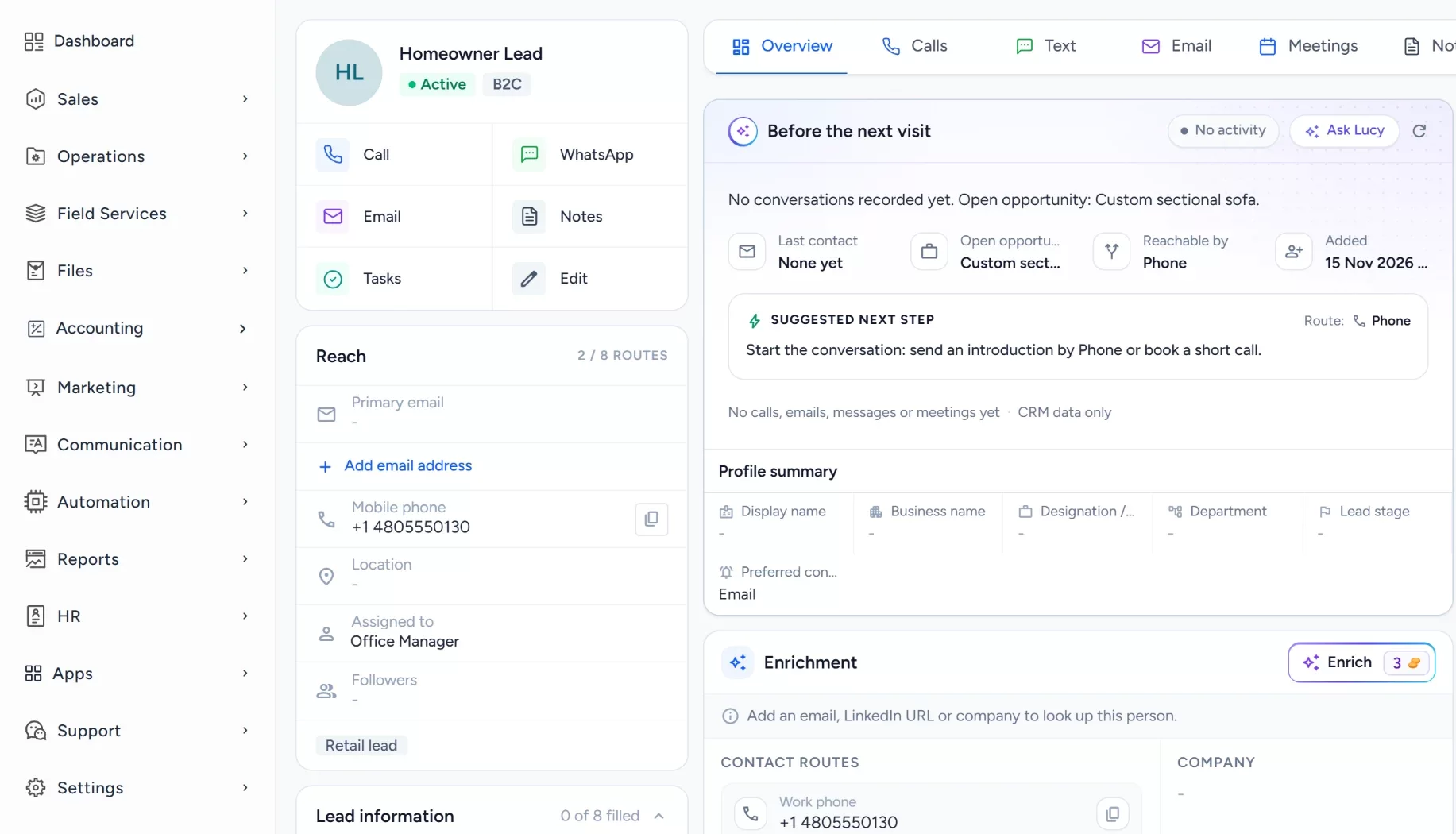
Keep calls, messages and notes together on one customer record that permitted staff can open.
Staff log in-store conversations after the visit.
CRM configuration and daily workflow
What the team configures
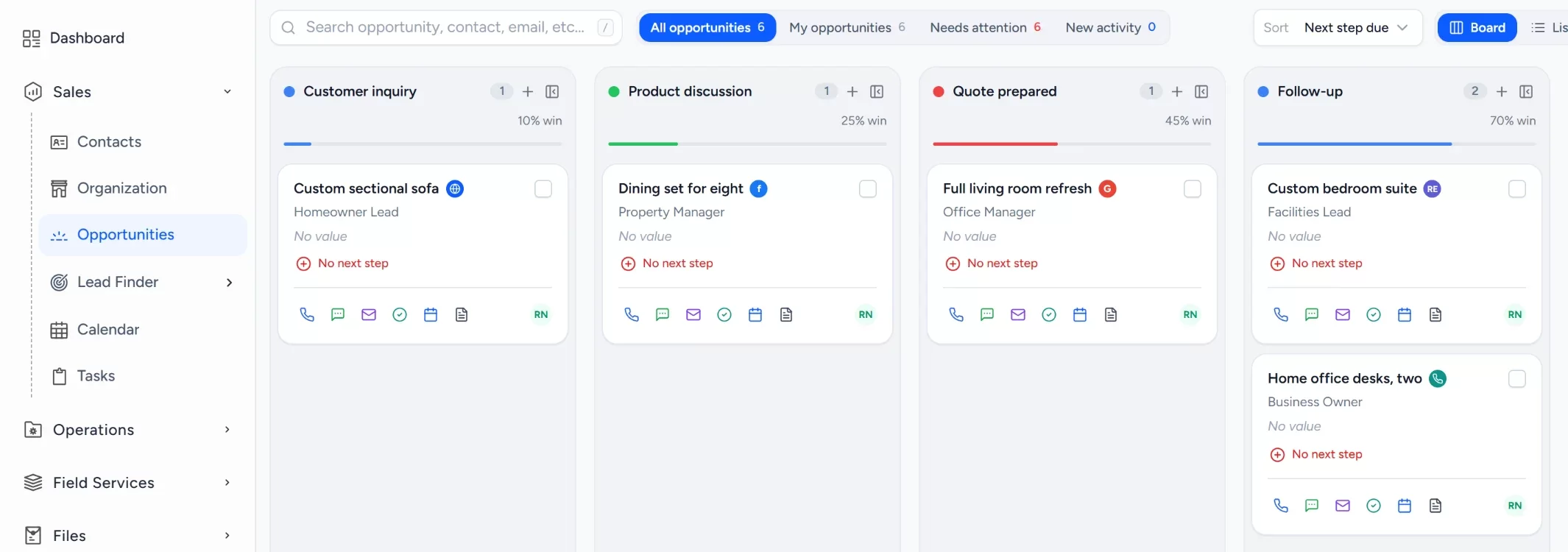
- 1Customer inquiry
- 2Product discussion
- 3Quote prepared
- 4Follow-up
- 5Purchase decision
Keep customers and conversations
Each shopper has a contact record holding past inquiries, preferences and notes from every visit.
Collect online inquiries
A website form creates contacts for product and custom order questions, with the source recorded.
Open an opportunity for larger purchases
Quotations and special orders become opportunities, with stages from product discussion to purchase decision.
Assign a salesperson
Each opportunity has an owner, so a customer returning to the showroom meets someone who knows the history.
Schedule the follow-up
A task after the quote keeps the next contact on the salesperson's list.
Workflow recipe
Build it in Workflows
When staff open an Opportunity for a special order or quote, this workflow gives the salesperson a follow-up task so the shopper is not forgotten.
When
An Opportunity is created
Only if
- The Opportunity is in your special orders pipeline
Then
- Assign an owner
- Create a follow-up task for two days later
- Send an internal notification to the salesperson
Lucy participation
Where Lucy helps
- TriggerA customer who asked for a special order quote has had no follow-up logged.
- ContextLucy reads the customer record, its notes and earlier logged conversations that the salesperson may open.
- ProposalLucy recalls the earlier conversation and drafts a short check-in with a proposed follow-up task.
- ReviewA person reads the draft, edits it and approves it. Anything Lucy drafts for a customer waits for a person to approve it before it leaves.
- LoggedThe approved message and the follow-up task are logged on the record's activity, so the next person sees what was sent.
Before and after
How the process changes
Without the suggested setup
- Quote requests are remembered, not recorded
- Special orders live in notebooks and texts
- Repeat buyers are re-introduced each visit
- Follow-up depends on whoever was on the floor
With the suggested setup
- Higher-value purchases become Opportunities
- Special orders carry stages and tasks
- Customer history is one record
- Every quote has an owner and a scheduled follow-up
A comparison of typical processes, not measured results.
How to configure
Set it up in five steps
Add your first records
In Sales > Contacts, add a few customers with notes about past purchases, and open one Opportunity in Sales > Opportunities.
Configure the lead source
In Sales > Lead Finder > Form Builder, build the request form, then add the Website Form Capture card under Settings > Integrations to put it on your site.
Set the Opportunity pipeline
In Sales > Opportunities, open the pipeline settings and add the stages: Customer inquiry, Product discussion, Quote prepared, Follow-up, Purchase decision. Add lost reasons for work that is not won.
Set tasks, workflows and the approval policy
In Automation > Workflows, create a workflow on the opportunity created trigger that creates a follow-up task and assigns the salesperson. Lucy drafts stay drafts until a person approves them. A plain Send email step in a workflow sends on its own, so use it only for messages you are happy to go out automatically.
Check it with a test run
Open the Dashboard to see the new records, check Communication > Notifications for the task alert, and complete the follow-up task and confirm it is logged on the customer record.
Intended benefits
What this setup is designed to improve
Scope. Arches CRM does not handle checkout, payments, stock or inventory. Those stay in your current POS and inventory platform.
- Designed to preserve context between visits and inquiries
- Designed to keep large quotes from being forgotten
- Designed to give each opportunity a salesperson and a follow-up
- Designed to sit beside the current POS, not replace it
Screens
What the team sees in Arches
Questions about this workflow
Does Arches CRM include point of sale or stock management?
No. Checkout, payments and inventory stay in the shop's existing systems.
Is this useful for a small shop?
It suits shops where sales begin with an inquiry, a quote or a special order that needs a follow-up.
Can Lucy send every customer message?
No. Lucy drafts, and anything she drafts for a customer waits for a person to approve it. Only an email step an admin builds into a workflow can send on its own.
Related workflows
Make sure every service request and estimate has a named owner
Give every service inquiry and replacement estimate a next step, even while technicians are out on jobs.Read the guideExplore Arches CRM for Retail Businesses
The full retail page: lead capture, pipeline, automation and FAQs.Open the pageBusiness story: Remembering the customer who said they would decide laterRead the story
Explore Arches CRM for Retail Businesses.
Or book a demo and we will walk through this workflow with your own team.Explore Arches CRM for Retail Businesses Book a demo